Cisco Umbrella - Secure Web Gateway Exclusions
Excluding traffic / domain from Secure Web Gateway proxy within Cisco Umbrella
If you are utilizing Cisco Umbrella’s Secure Web Gateway, you may experience issues with domains, websites, or applications not working when their traffic is being proxied / inspected by Cisco Umbrella.
If you are not familiar with Cisco Umbrella, you can read more about it here. And this post is mainly related to the secure web gateway feature within Cisco Umbrella.
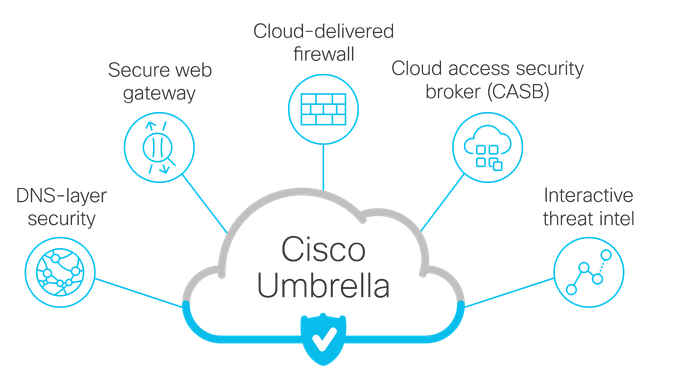
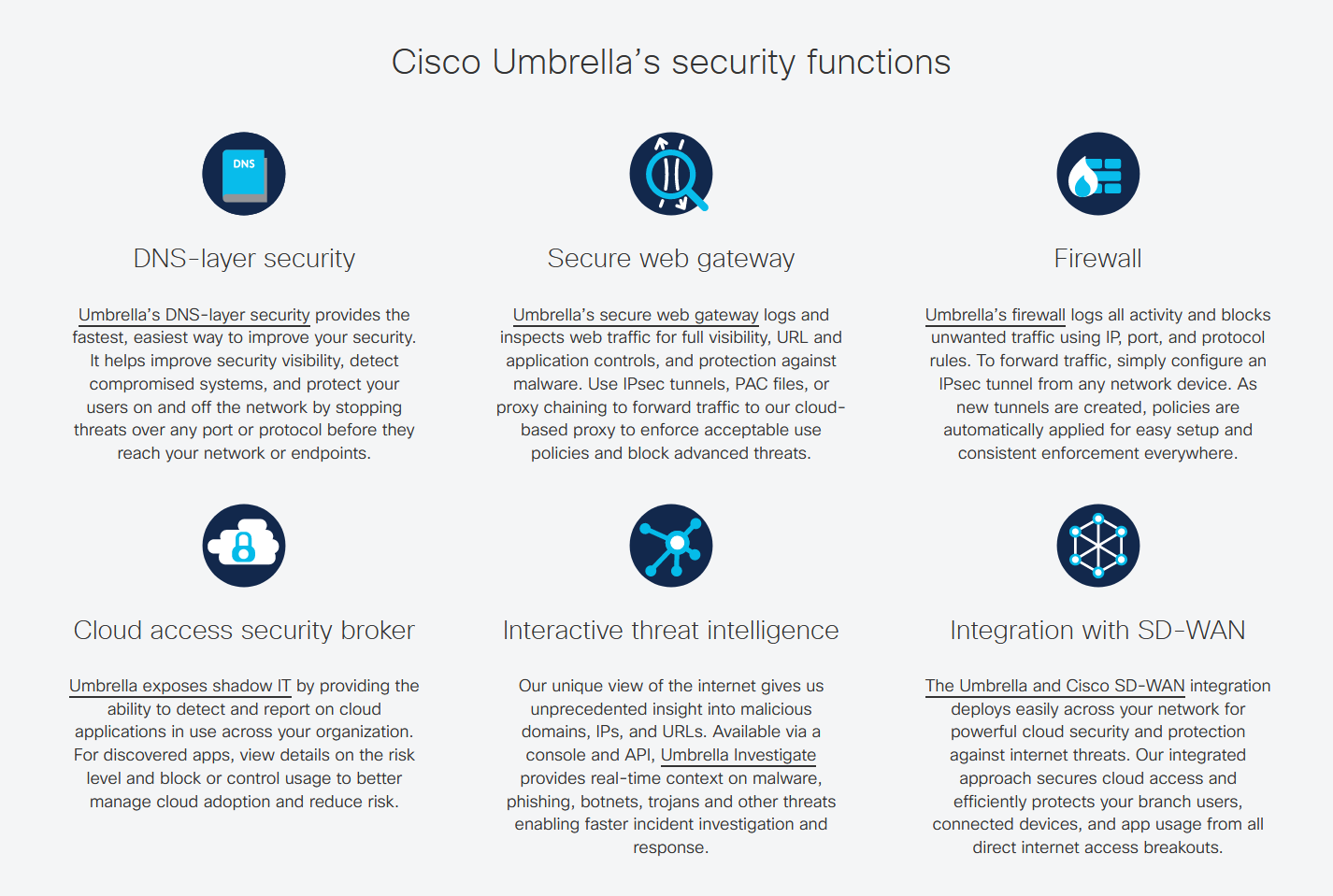
The following screenshot gives a brief overview of Cisco Umbrella’s core security functions, which includes secure web gateway.
Precursor
There are a couple different scenarios to consider before deciding to proceed with excluding the IP / Domain from the Secure Web Gateway within Cisco Umbrella.
It may be possible that instead of the domain/website/application not working when their traffic is being proxied, it might be that certain requests or traffic is actually being blocked by your companies DNS policies or Web policies within Cisco Umbrella.
Unless you already know for sure that this is the cause, it would be best to search the logs within Cisco Umbrella for anything that might indicate why you are experiencing issues.
If you are unable to find anything being blocked based on the policies set within Cisco Umbrella, it is also important to look at what is being allowed within the logs / queries for that specific device or user. Because it might also be that it is being allowed, but in collaboration with the secure web gateway, that it is not working properly.
Example
I have personally experienced an issue where traffic was being allowed to Microsoft Teams, but whenever I joined a meeting it would eventually force disconnect the meeting saying “We couldn’t connect the call.”
This only occurred when the device was using the secure web gateway functionality with the Cisco Secure Client agent installed. As soon as the service or functionality was disabled related to secure web gateway, Teams meetings would work perfectly fine.
The logs within Cisco Umbrella were indicating that everything was being allowed for DNS and Web policies, but I noticed something specific within the list of logs / queries. Requests were being made to a dynamic URL for Teams.
Such as: https://xx-xx-xx-xx.relay.teams.microsoft.com - where xx are numbers, that appears to be an IP when all together (One of Microsoft Teams IPs). But the important thing was noticing that based on the URL, it appeared to be related to a relay. And these URLs were dynamic in the sense that it was more than one URL, it was not a single one. We were effectively proxying relayed traffic, which Microsoft Teams did not seem to like.
So, the traffic / queries were being allowed, but when the secure web gateway was enabled, it would not work. Which lead me to look for a solution of preventing traffic to this specific URL scheme to be excluded from the secure web gateway proxy, while still proxying other traffic within Teams so that we are still protected from threats.
Secure Web Gateway Exclusions
If there is no indication that this is an issue caused by something else, then it would be worth it to try excluding it from the secure web gateway proxy.
Cisco Umbrella offers their own documentation here, but you can also follow along below:
- Log in to Cisco Umbrella dashboard (need admin access)
- Expand the Deployments Tab
- Under the Configuration section, select Domain Management
- At the top, select the External Domains & IPs section
- Then go to the top right of the screen and select Add (to the left of Upload)
- It will then open am enu where you can select the type of domain it is (Intenral vs External Domain & IPs) - if it is an external, be sure to select that. This is where you will also select the domain name or IP that you want to exclude / bypass for. You can also add a description so that you can remember why this bypass is in place in the future.
- Click save once done.
After saving, it should be in effect. I personally restart the machine after making a change like this before testing to make sure the change works. If it does not work, then it would probably be best to delete this exception so that you can try something else and the traffic to the specific domain / IP starts being protected again.
Something important to remember during the creation of the bypass / exclusion, is knowing how it will be handled based on how you enter it. If you are using a domain instead of specifying an IP, Umbrella will handle it with an implied left side and right side wildcard.
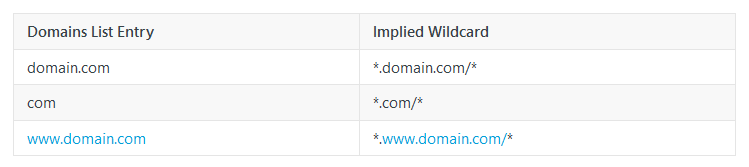
You can read more about it here.
This is mainly related when using domains. Which is why it is important to review the logs to understand what queries are being made, so that you can possibly exclude it on a more specific basis for the domain(s), instead of a generalized wildcard exception. Since if you exclude everything, that means all traffic to that entire wildcard will be bypassed / excluded. In the example with Teams, I did a wildcard based on the relay subdomain, so any queries / traffic for *.relay.teams.microsoft.com - it would be excluded, while other teams.microsoft.com traffic would still be protected by the secure web gateway.